img-full-scan-the-qr-code-to-pay-on-phone.jpg

QR Payments

Support for Worldline QR Payments. Find resources to configure and manage your terminal-free payment solution, allowing customers to pay instantly by scanning a QR code with their mobile devices.

Frequently asked questions

Topics

Using QR Payments

Features & capabilities

Please follow the step-by-step guide in our Saferpay documentation for the activation of Google Pay and Apple Pay.

Are you already a Saferpay customer and would like to turn your own smartphone into a mobile terminal?


Then simply generate a QR code in just a few steps. Your customers scan it on their mobile phone and pay. You don't need a printed QR code flyer:


Step 1
Log in to Saferpay Backoffice with your smartphone and enter your Backoffice access data at Saferpay OnSite (instead of "Login Backoffice" as usual). The OnSite app starts automatically.


Step 2
Click on the button "Create new payment link".


Step 3
Enter the amount of your item and create your payment link with QR code.


Step 4
Your customer scans the QR code and pays.


Step 5
You and your customer receive an immediate payment confirmation.

QR Payments works basically anywhere you can put a stand with a QR code printout offline, or anywhere you can integrate the QR code into your website online or when you send a payment link to your customers. The payment method is particularly suitable for example for:


  • Businesses that don’t have a payment terminal or cash register system
  • Restaurants or bars
  • Taxis
  • Medical practices
  • Farm shops
  • Market stalls
  • Donations either in person or online
  • Club or association membership payments
  • Trainings

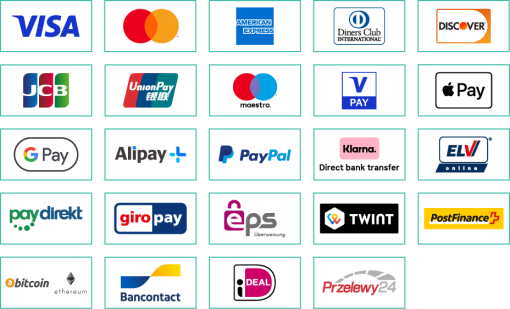
Acceptance of all common credit and debit cards, mobile payment methods and cryptocurrencies: Visa, Visa Debit, V PAY, Mastercard, Debit Mastercard, Diners Club International, Discover Card, UnionPay, JCB, Google Pay, Apple Pay, TWINT and Worldline Crypto Payments.


American Express, PostFinance Pay, Maestro and PayPal can be added. For this, a supplemental agreement must be signed with the respective acquirer. For further questions please contact our Customer Services: cs.ecom@worldline.com

Means of payment


means of payment qr payments


Features


  • Sales description on the payment page
  • Definition of currency
  • Authorisation type
  • Payment page configuration for styling
  • Payment notification (who should be notified about receipt of payment?)
  • Payment link & QR code
  • Variable and fixed amount definition
  • Request address data from the customer
  • Optional query of the e-mail address


Backoffice

Backoffice overview & usage

Learn all about the integration, interface configuration and use of Saferpay in our technical Saferpay documentation to ensure that the integration of the payment solution into your business application runs smoothly right from the start.


General information about Saferpay products, payment methods, plugins and prices can be found on our Saferpay website.

Backoffice

Access & login

Please contact our Saferpay Support: support.saferpay@worldline.com

How do I create a QR code for printing?

Order supplies and accessories

Order supplies and accessories for payment transactions - easily online.

Have questions about your account or contract?

Find answers about myPortal, contracts, billing, transactions, and Know Your Customer requirements.